Master a track
Upload a finished mix, choose how loud the master should be, and listen to the master against your mix. Hearing the whole master is free. To get the file, see Download your master.
What you need
An account, free or Unlimited. A free account can make 20 masters a day.
Your finished mix as WAV, AIFF, FLAC or MP3, up to 1 GB. Tracks can be up to 12 minutes. Unlimited or a track credit supports up to 30 minutes at 48 kHz or below (15 minutes at 96 kHz).
A few minutes. The job page shows an estimate while it works.
Jump to a step
In the pictures, a blue ring marks the button or line the step is about.
1. Open the upload page
On a computer
Sign in and press Master a track at the top of the sidebar.
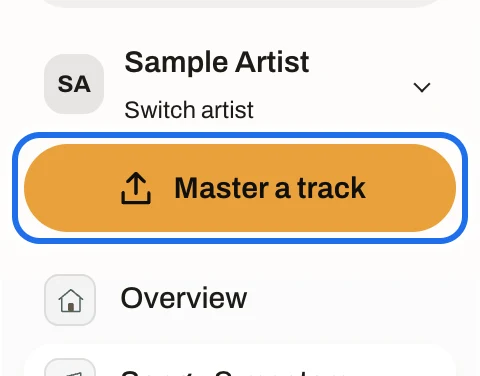
What you will see · SidebarOpen full size · Screenshot from the app
On a phone
Sign in and tap Master in the bar at the bottom of the screen.
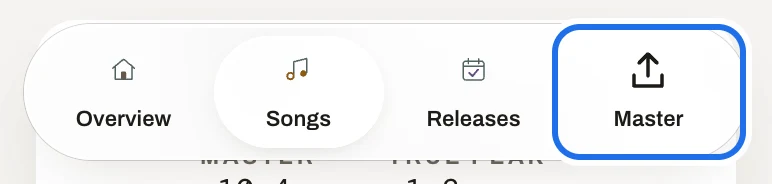
What you will see · Bottom bar, on a phoneOpen full size · Screenshot from the app
2. Name the song
In the first row, Song, check the Artist, leave Song destination on New song (or choose Existing song to add this mix to a song you already have), and type the Song title.
To choose a different artist, open the Artist dropdown and type to search the artists in your account.
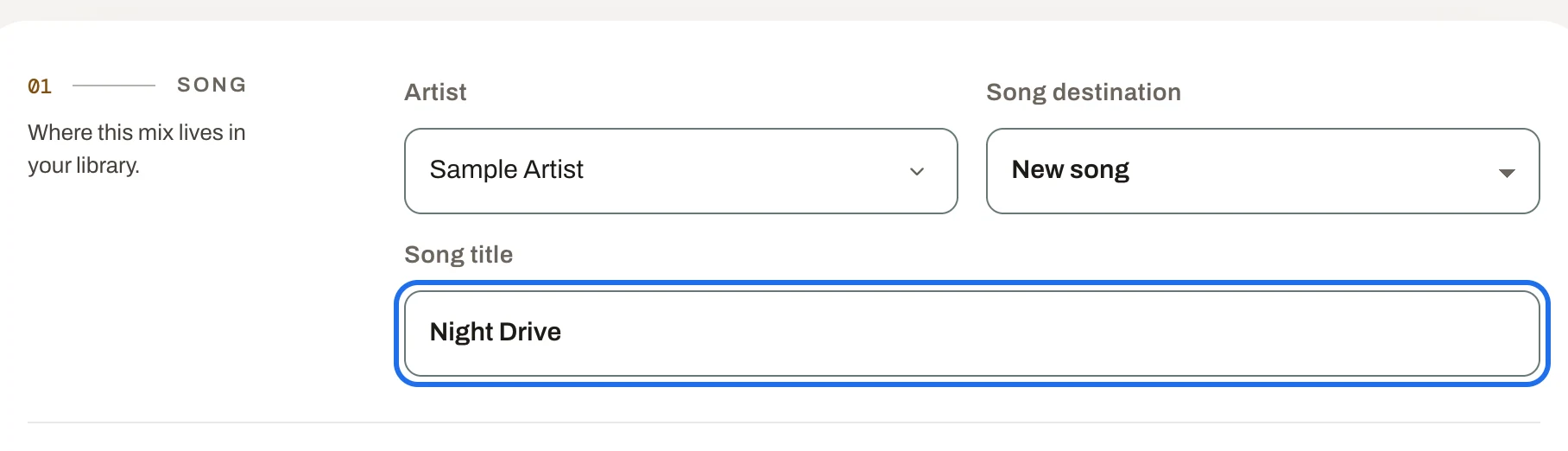
What you will see · Upload page · SongOpen full size · Screenshot from the app
3. Add your mix
In the Mix row, drag the file onto Drag a track here, or press Browse files and choose it. The line under the button lists the files the page accepts.
Once the page accepts the file, the row says File ready, with the file’s size and what your browser could read of its length, sample rate and bit depth. Change file picks another.
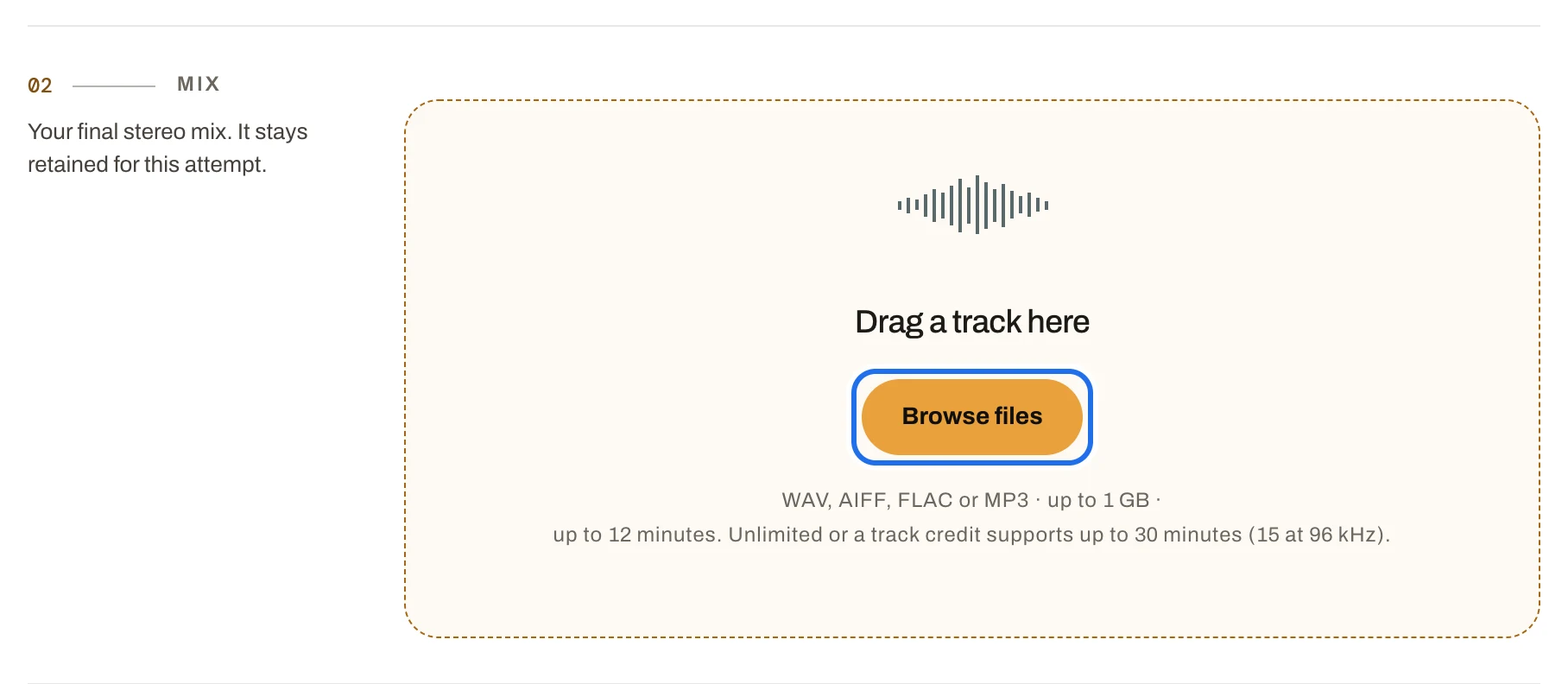
What you will see · Upload page · MixOpen full size · Screenshot from the app
4. Choose a loudness
In the Loudness row, pick one of the four choices on the ruler, which runs from quieter to louder: Dynamic (−14 LUFS), Balanced (−11 LUFS), Full (−9 LUFS), Extra loud (−8 LUFS). Full is chosen to start. Under the ruler, the page names your choice and draws a passage at that loudness. The drawing is an example, not your track.
Under the drawing, Peak ceiling starts on −1.0 dBTP: the master's peaks stay under it, which leaves room for streaming services' encoders, and the MP3 is checked after encoding so it does not clip. Choose −0.1 dBTP instead for a WAV nobody re-encodes; its MP3 is delivered as encoded and can peak higher than the WAV.
Not sure which? Loudness targets explains what each streaming service does with a loud master.
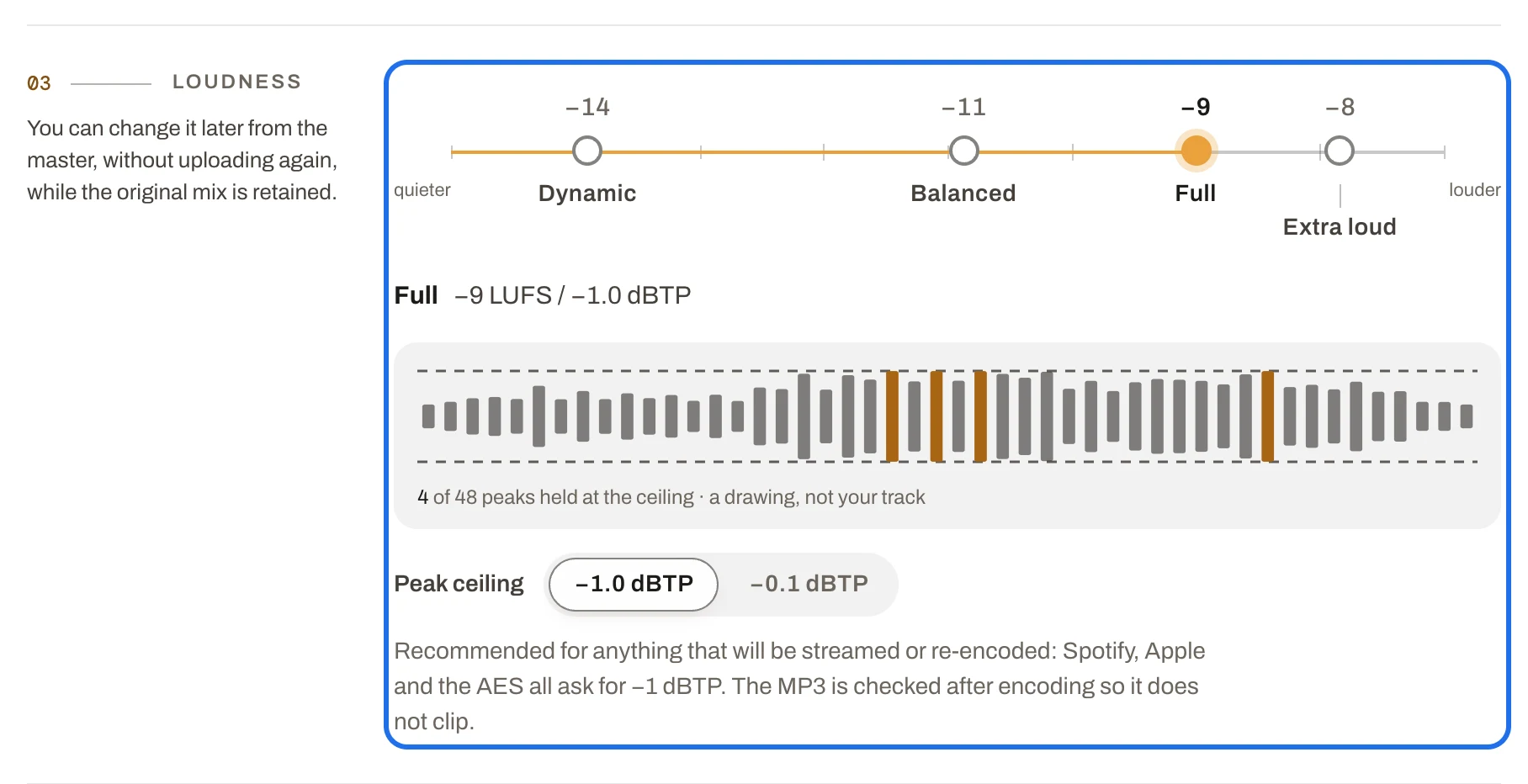
What you will see · Upload page · LoudnessOpen full size · Screenshot from the app
5. Start mastering
Press Master this mix. When your browser could read the track’s length, the line beside the button estimates how long it will take.
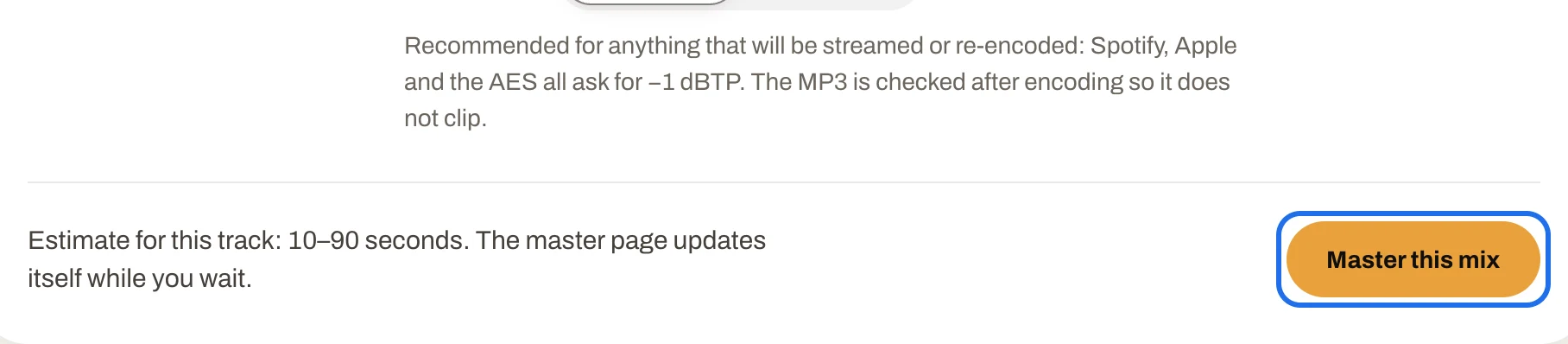
What you will see · Upload page · under the loudness choicesOpen full size · Screenshot from the app
The page moves to the job page. Under Processing, Uploaded comes first, then one block for Analyzing, Mastering and Rendering, lit together: the engine reports that it is working, not which step it is on. The page shows the time so far and an estimate, and updates by itself.
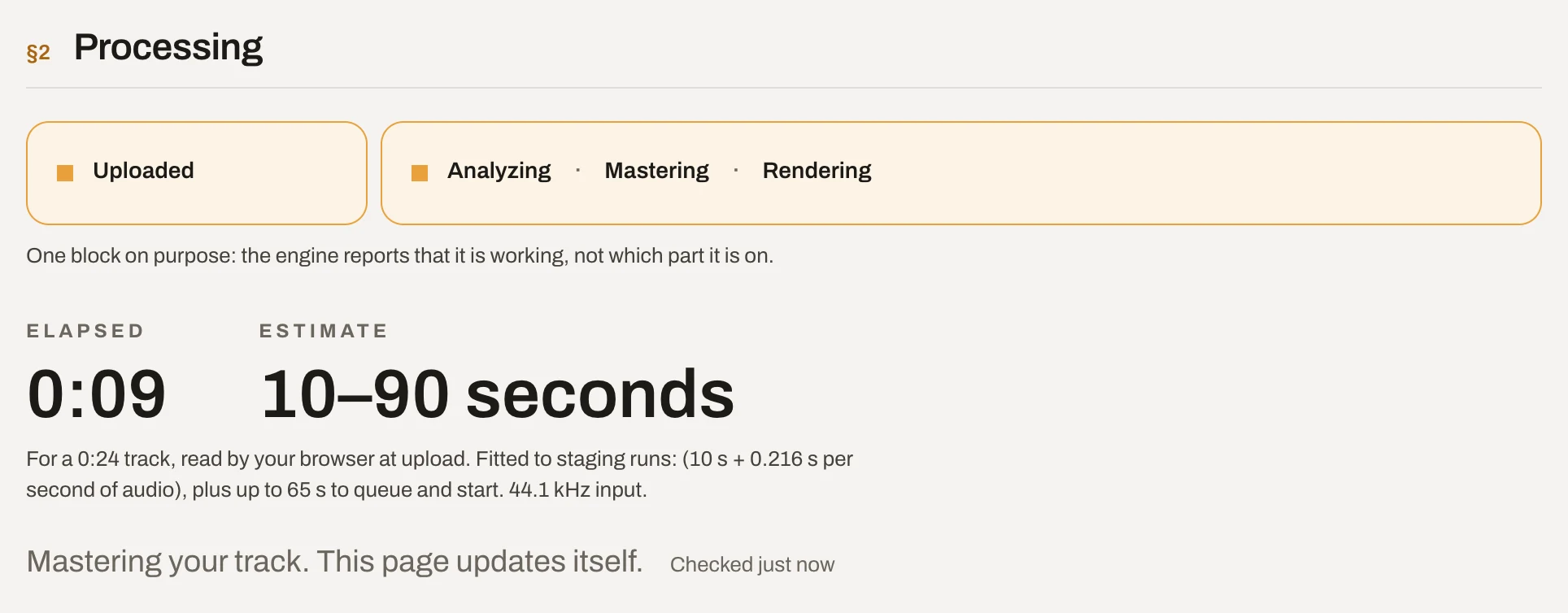
What you will see · Job page · ProcessingOpen full size · Screenshot from the app
- The stages: Uploaded, then one block for Analyzing, Mastering and Rendering.
- Elapsed: the time so far.
- Estimate: how long it should take, as a range.
- This page updates itself. Checked says when it last asked.
6. Listen to the master
When it finishes, the page says Your master is ready and moves down to Delivery. Press the round Play button. Your mix and Master at the top switch between your original mix and the master; the one you are hearing is highlighted. Both play at their own levels, so you hear the change in loudness, and the file you download is the master you hear.
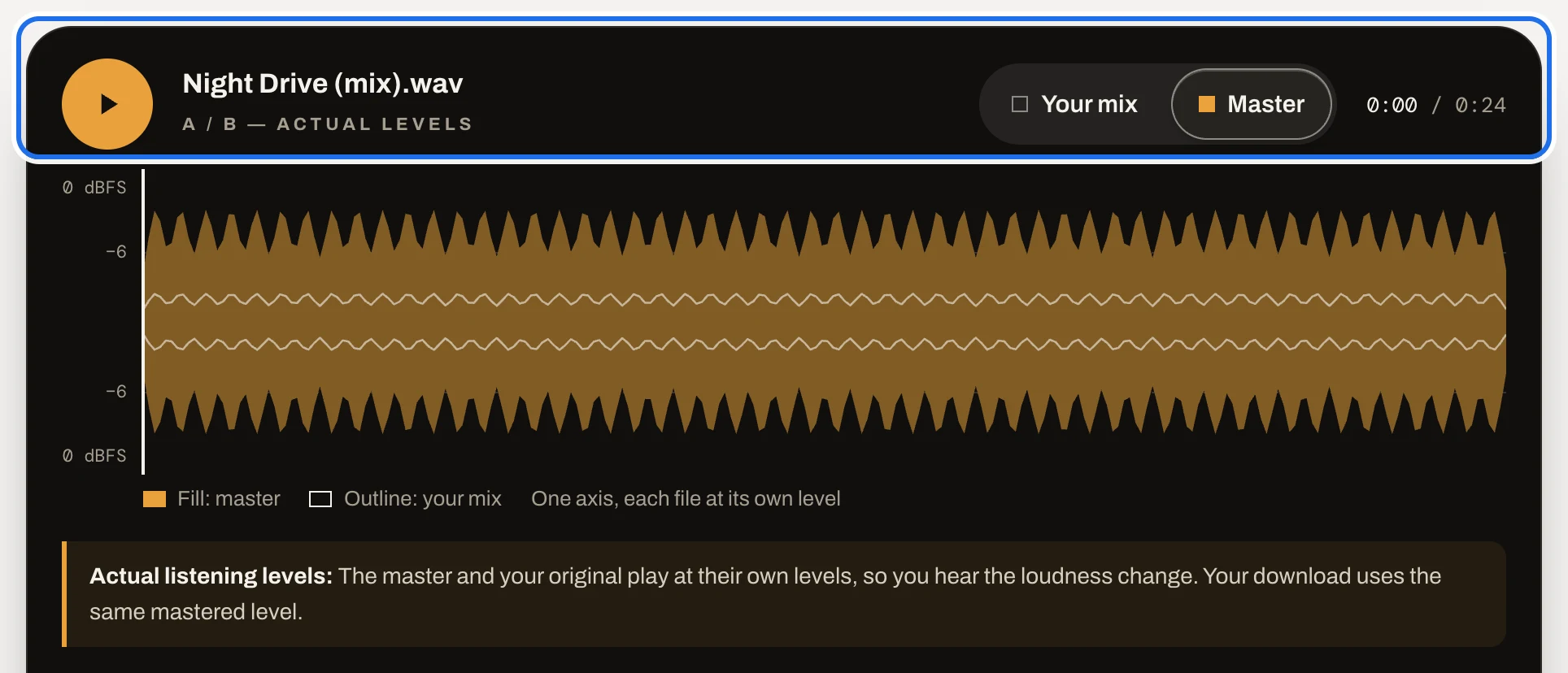
What you will see · Job page · Delivery, the playerOpen full size · Screenshot from the app
- Both files on one axis: the master filled, your mix outlined.
- Play.
- Your mix and Master: press one to hear that file.
- Actual listening levels: both play at their own level.
7. Compare the numbers
Under the player, the readings put Your mix, measured when it arrived, and the Master, measured on the delivered 24-bit WAV, on three scales: Integrated loudness in LUFS, True peak in dBTP and Loudness range in LU. The line under each scale gives the change and what the master was held to: the loudness target, the peak ceiling, or no target for the range.
If your mix could not reach the target without going over the ceiling, the loudness line says Delivered below target and how far short it landed. The master is still delivered.
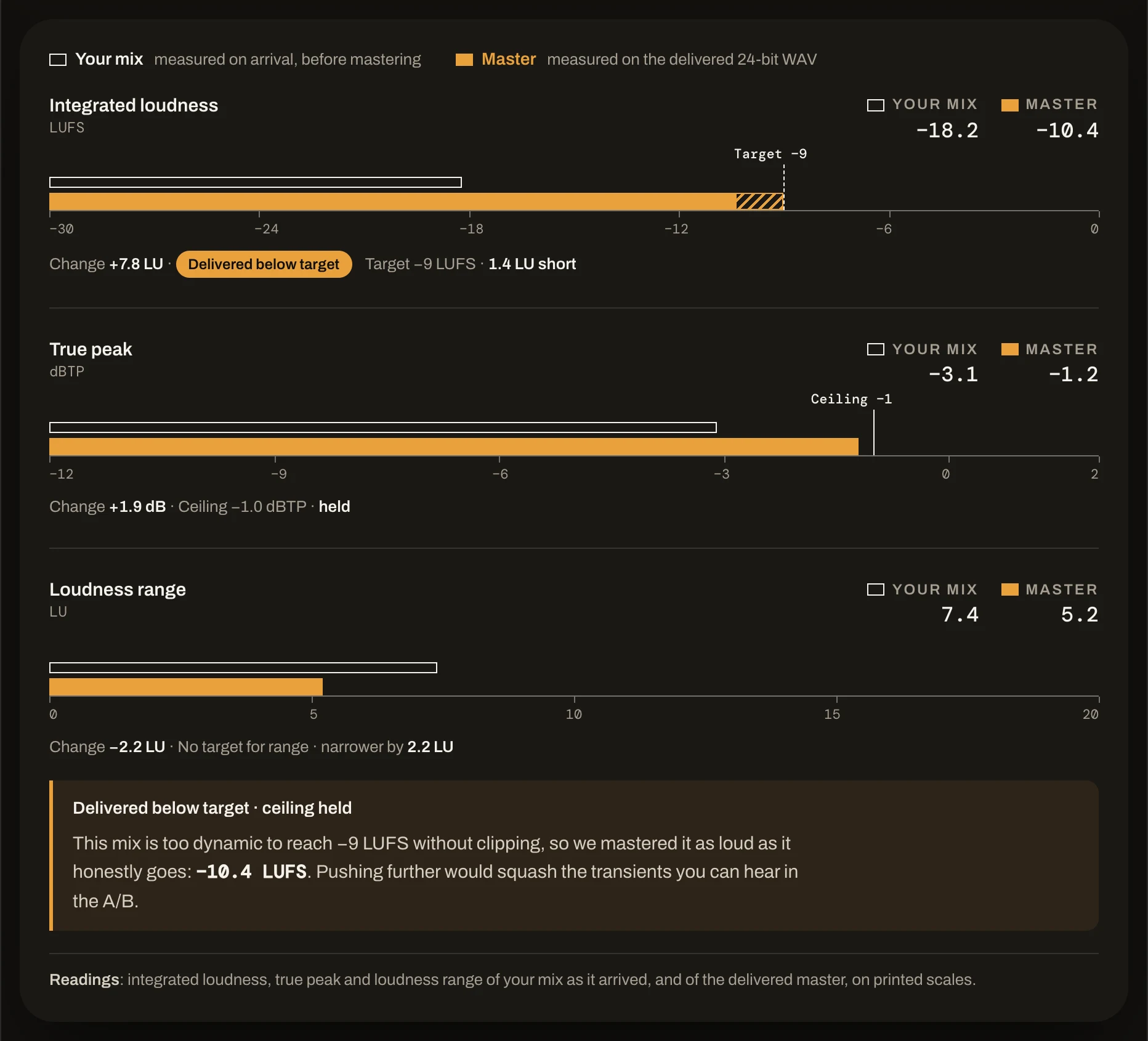
What you will see · Job page · Delivery, the readingsOpen full size · Screenshot from the app
- Your mix: measured on arrival, before mastering. Its bars are outlined.
- Master: measured on the delivered 24-bit WAV. Its bars are filled.
- Under each scale: the change, and the target or ceiling it was held to.
These are example values; your track’s readings will differ.
Want a different loudness? Press Change loudness under the download buttons. It makes another master from the same mix and keeps the one you have. See Change your master’s loudness.
Next: Download your master. If the job page says the master was not delivered, see Fix a master that failed.